Rotate Image Online
A quarter turn or a tiny correction. Set the angle without cutting off the corners.
Image workspace
No upload. No watermark.A new perspective starts here.
Drop your image, or paste it anywhere.
PNG, JPG, WebP & more · Up to 30 MBYour image stays on your device.
Ctrl + V to pasteRotate image: steps for changing orientation
- Choose the picture. Open PNG, JPEG, WebP, GIF, AVIF or BMP from your device. You can also drag a file or paste image data with Ctrl+V on Windows or Command+V on Mac.
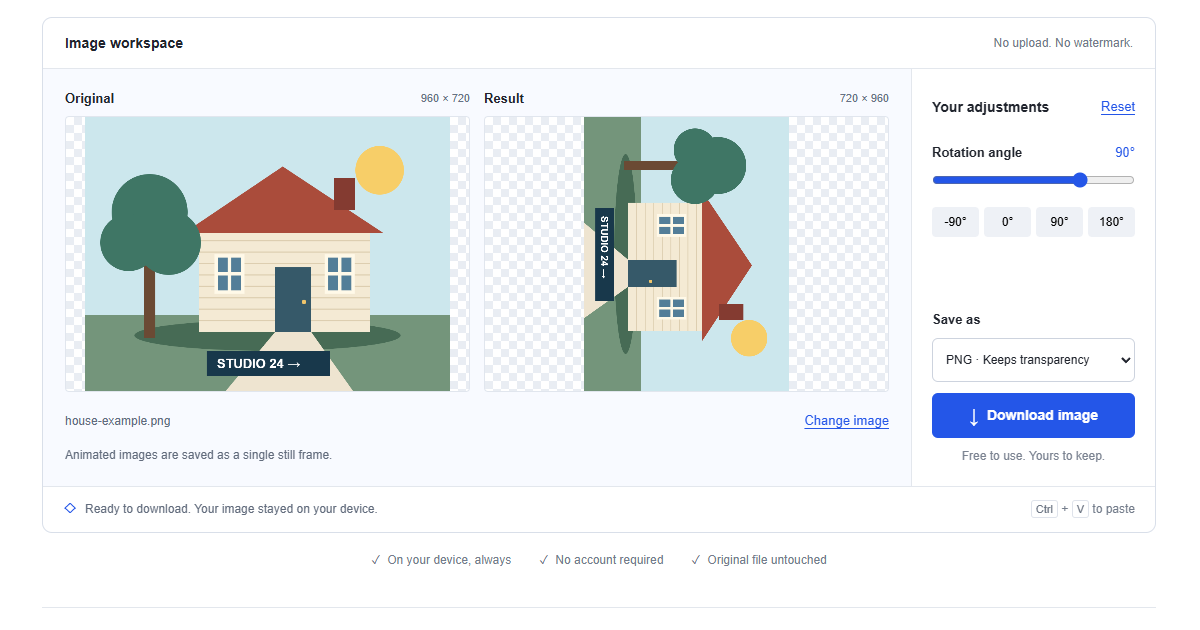
- Set an angle. Use a preset for −90, 0, 90 or 180 degrees, or move Rotation angle in one-degree steps. Positive angles turn clockwise; −90 degrees gives the same orientation as 270 degrees clockwise.
- Inspect and save. Check that the subject and any lettering face the correct way. Choose PNG or JPEG, read the output dimensions and download a separate copy.
How a rotation moves pixels
The tool turns the image around its center and creates a new rectangular canvas large enough to contain the result. Its width depends on the source width and height multiplied by the angle's sine and cosine; the height is calculated similarly. A quarter turn simply swaps width and height, while an oblique angle usually adds empty space around the corners.
Right-angle turns keep the pixel grid aligned. Other angles require resampling, which can soften fine edges. Every slider change starts from the original working image, so experimenting with several angles does not repeatedly resample the previous preview.
Five reasons to turn or straighten a picture
Correct a phone photo displayed sideways
A photo can appear sideways in a particular workflow even when it looked correct in the camera gallery. Open it here and inspect the displayed Original before making a change, because browsers can already apply camera orientation information while decoding. If it is still sideways, use a quarter turn. The downloaded canvas contains the visibly corrected pixels, rather than depending on the original camera EXIF orientation metadata.
Straighten a slightly tilted scan
A page placed a little crooked on a scanner can make its text lines slope across a document. Start near zero and adjust the slider by one or two degrees while comparing a line of text or the page edge. The canvas expands to preserve corners, so the output may need cropping in another editor. This is a whole-image rotation, not perspective correction for a photographed trapezoidal page.
Make quick 90, 180 or 270 degree turns
When a page is clearly sideways or upside down, a fixed turn is more predictable than dragging the angle slider. Choose 90 for clockwise, 180 for a half turn, or −90 for the orientation of a 270-degree clockwise turn. Presets set an absolute angle from the source; they do not add another turn each time you click. Check the Result before downloading the corrected page.
Give several pictures a consistent orientation
A set of scanned pages or product views may arrive with mixed directions. Open, correct and save each file individually, using consistent output formats and checking the subject rather than assuming every source needs the same angle. There is no batch export here. Be especially careful when moving to the next file, because the current controls can still be set to the previous image's angle.
Turn a horizontal texture into a vertical layout element
A landscape-oriented abstract texture or directional pattern may fit a tall banner after a quarter turn. The width and height exchange places, giving you a vertical asset without cutting away its edges. This is useful when the subject has no fixed upright direction. A normal photograph or a banner containing text also turns sideways, so redesign or crop those separately if the content must stay upright.
Choose PNG or JPEG for rotated corners
Choose PNG when you need transparent corners after a slight rotation, or when the source already has transparency. The expanded canvas stays transparent outside the turned picture. PNG avoids a lossy save step, although it cannot reverse interpolation introduced by a non-right-angle rotation.
Choose JPEG for a photographic or document copy that should sit on white. The export fills all transparent space, including the new corners, with white before compression. It does not automatically crop those areas. The result contains rendered pixels without the original camera EXIF metadata, so retain the source if that information matters.
Accepted files and expanded output sizes
The tool accepts PNG, JPEG, WebP, GIF, AVIF and BMP when the browser can decode them. HEIC and SVG must first be exported as PNG or JPEG. Animation becomes a single still frame, and the selected file must be no larger than 30 MB.
Before rotation, large inputs are reduced proportionally to 4000 pixels on the longest side and approximately 8 megapixels overall. Rotation can then enlarge the output canvas beyond those input working limits. Read Result dimensions rather than assuming the download matches the source. Initial reduction can remove fine detail, and a small angle can introduce additional interpolation along edges.
Rotate versus flip: turning is not mirroring
Rotation changes the angle of the whole picture while preserving its handedness. Text turns with the page but is not reflected. A horizontal or vertical flip reflects one axis and changes handedness; flipping both axes is equivalent to a 180-degree turn. Use the image flipper to mirror an image when a selfie or transfer design needs reflection.
If a scan needs only stronger edges after it has been straightened, download the rotated copy and open the sharpen image tool. Use a moderate amount and check small letters. Sharpening cannot undo perspective distortion or recreate details lost to a low-resolution scan, and changing tools does not transfer your open file automatically.
Rotate a photo in a mobile browser
Tap Choose image, select a supported photo and use the large angle presets for a quick turn. For a small correction, drag Rotation angle and wait for the updated preview. Download when the subject is upright, then check Downloads or Files if the new picture does not appear in your photo library.
If a phone photo is HEIC, export a compatible copy first. Pasting may fail if the clipboard holds a link or the browser restricts image access; use Choose image instead. Large rotations can need more memory because the output canvas expands. Try a smaller source and close other busy tabs if the preview stalls.
Local processing and saving before refresh
The browser rotates your selected file on the device without uploading it to a processing server. Normal requests load the website and its examples, but your picture is not part of those requests. Downloading creates a new file rather than overwriting the source. Save before refreshing, navigating to another tool or closing the tab. The open image and settings are temporary memory, with no cloud backup or history. Keep the source for another angle or for the original full-resolution version.
Frequently asked questions
How do I rotate an image 90 or 270 degrees?
Choose your picture and press 90 degrees for a clockwise quarter turn. Use −90 degrees for a counterclockwise turn, equivalent to 270 clockwise. Each preset sets an angle from the source rather than accumulating turns. Download once the orientation is correct.
Can I straighten a photo on my phone?
Yes, select it through Choose image in a modern mobile browser. Set an angle near zero, then adjust in one-degree steps. Check a horizon or text line in the preview before downloading. Convert HEIC files first if they are rejected.
Does rotating a photo reduce its quality?
Quarter turns keep the working pixel grid aligned. Arbitrary angles resample it and can slightly soften edges. Large sources are resized first, and JPEG adds lossy compression. PNG avoids that final compression step but cannot reverse earlier resizing or interpolation.
Can I rotate a picture without sending it to a server?
Yes, the picture is decoded and rotated locally in your browser. No image upload or account is required. Save the result before refreshing, since the workspace is temporary and does not keep a cloud copy.
Should I rotate or flip a backwards selfie?
Use a horizontal flip if the image is reflected left to right. Rotation changes the angle but does not fix reversed lettering. Use rotation when the entire picture is sideways or tilted, checking the displayed original first.
Can I undo a rotation?
Choose the 0-degree preset while the source remains open to return to its working orientation. Reset restores the default 90-degree setting rather than zero. Your original file remains unchanged. Rotating an already saved copy back cannot undo JPEG compression or arbitrary-angle resampling.
Why does the download have blank corners?
A tilted rectangle needs a larger canvas to keep all its corners visible. The added space is transparent in PNG and white in JPEG. This tool does not crop it automatically. Crop the downloaded result in another editor if you need a filled rectangle.