Image Flipper — Flip Image Online
Mirror a photo left to right, turn it upside down, or flip both ways.
Image workspace
No upload. No watermark.A new perspective starts here.
Drop your image, or paste it anywhere.
PNG, JPG, WebP & more · Up to 30 MBYour image stays on your device.
Ctrl + V to pasteHow to use the image flipper
- Open a picture. Choose a PNG, JPEG, WebP, GIF, AVIF or BMP from your device. You can also drop a file into the workspace or paste image data with Ctrl+V on Windows or Command+V on Mac.
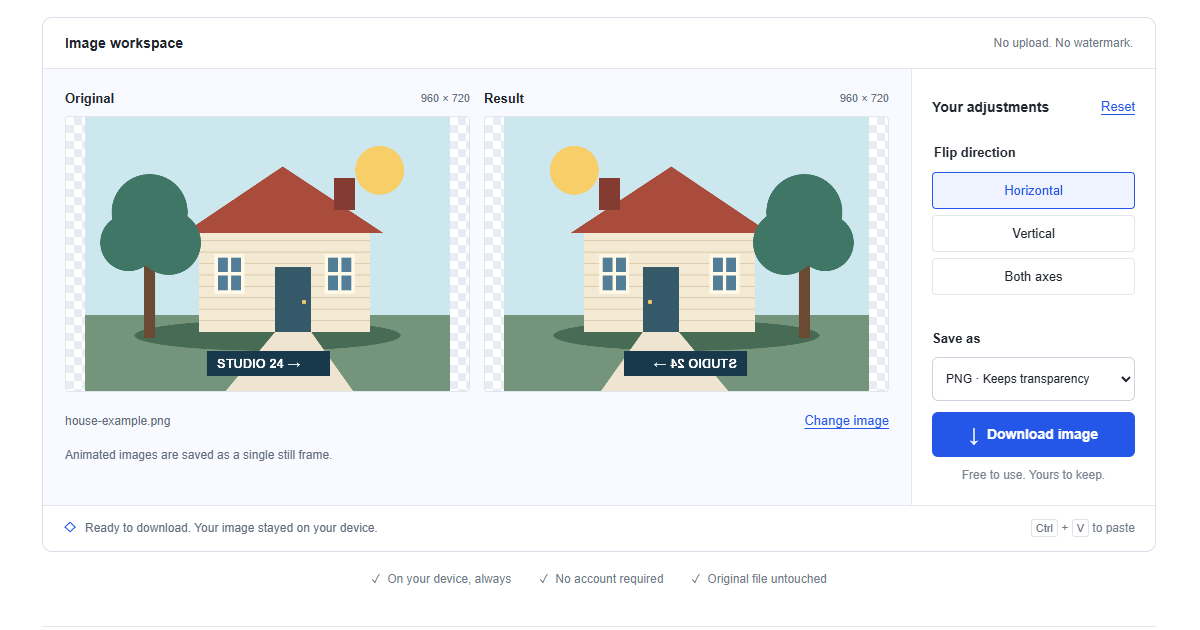
- Choose the reflection. Select Horizontal to swap left and right, Vertical to swap top and bottom, or Both axes. Compare lettering and recognizable objects in Original and Result before deciding.
- Check and download. Read the displayed dimensions, then choose PNG or JPEG under Save as. Press Download image to save a separate file, and keep the original for another orientation later.
What happens when you mirror pixels?
A horizontal flip moves the pixel at horizontal position x to width minus one minus x, keeping its row unchanged. A vertical flip performs the corresponding exchange between rows. The image keeps its working width and height; colors and transparency move with their pixels. Nothing identifies a face, a word or a background separately.
Flipping both axes is equivalent to rotating 180 degrees. Every direction you select is calculated from the original working image, so choosing Horizontal twice does not undo it. Switching to Vertical replaces the horizontal reflection rather than adding another transformation.
Five situations where flipping helps
Correct a mirrored selfie
Some front cameras save the mirrored preview, depending on the camera setting. You might notice backwards lettering on a shirt or a room that looks reversed compared with another photograph. Select Horizontal and use a familiar detail to check the result. Do not automatically flip every selfie: a saved photo may already have the correct orientation even when the live preview looked mirrored.
Put a scan or printed page right side up
A page scanned upside down usually needs Both axes, which has the same effect as a half turn. A vertical flip alone would also reverse the shapes of its letters. Check a short word and the page number after the change. For scans photographed through the back of thin paper, a horizontal reflection may instead be the useful correction; judge the actual lettering before saving.
Prepare a mirrored transfer or screen-printing film
Some transfer papers and film workflows require artwork to face backwards before it reaches the final surface. A horizontal reflection lets you prepare that version while preserving the source. Follow the specific paper or print shop instructions, because the required orientation depends on the transfer method and film placement. Check whether the printer driver already mirrors the job; applying the reflection twice cancels the intended change.
Turn a subject toward your page layout
A portrait looking out of the edge of a brochure can pull attention away from nearby copy. Trying a mirrored version may let the subject face toward the text or a product instead. Compare the two versions inside your actual layout, including the crop. Watch for reversed brand marks, clothing text and recognizable locations; those details may make mirroring unsuitable even when the composition feels better.
See a familiar composition with fresh eyes
After looking at a photograph for a long time, an awkward balance can become difficult to notice. A temporary mirror view changes where familiar shapes sit and may reveal an empty corner, a distracting edge or an uneven pose. Use the result as a composition check before returning to the source. The reflection is a viewing aid, so you do not need to publish the mirrored version.
Choose PNG or JPEG for a flipped image
Choose PNG for lettering, diagrams and cutouts with transparent backgrounds. It saves the processed pixels without another lossy compression step. Existing transparent areas remain transparent, but an opaque white background stays white: flipping does not remove a background.
Choose JPEG for a photographic copy when transparency is unnecessary. Transparent pixels are composited onto white, and compression may soften small text or fine textures. The download contains the rendered picture rather than the original camera file, so keep the source if its EXIF metadata matters. Compare the saved copy at its intended display size.
Accepted formats and working size
PNG, JPEG, WebP, GIF, AVIF and BMP are accepted when the browser can decode them. HEIC and SVG are not accepted; export a PNG or JPEG first. Animated images become one still frame. Each file must be no larger than 30 MB.
Large images are reduced proportionally to fit a longest side of 4000 pixels and approximately 8 megapixels overall before the flip. A square image can hit the pixel-count limit before either side reaches 4000. Resizing can remove fine detail; the reflection itself does not reduce the working dimensions. Read the resize notice before choosing a print size.
Flip versus rotate: which correction do you need?
A rotation turns the whole picture around its center while preserving its handedness: letters turn with the page but are not reflected. A single-axis flip changes handedness, so left-facing objects become right-facing or top and bottom are reflected. Both axes together produce a half turn. Use the rotate image tool for a sideways page or a slightly tilted horizon.
If you want to invert image colors, that changes RGB values rather than the positions of objects. A white shape becomes black while its direction stays the same. Mirroring keeps the colors and changes placement, which is why it can fix backwards text but cannot create a photographic negative.
Mirror a photo on your phone
Open this page in your mobile browser, tap Choose image and select a supported picture from Photos or Files. Choose the direction, then download the result. Depending on the browser, the file may appear in Downloads or Files rather than directly in your photo library; open that saved file to check it.
If an iPhone picture will not open, check whether it is HEIC and export a compatible copy. Pasting requires actual image data, so a copied link or a clipboard restriction may do nothing; use Choose image instead. Large decoded photos can exhaust memory even below the file limit. Try a smaller copy and close other busy tabs.
Local editing and saving your work
The browser reads the selected image and reflects its pixels on your device. No image is uploaded to a processing server, and choosing a picture does not overwrite the original. Loading the website still involves normal requests for its page, code and example images. The workspace is temporary memory, not an online album. Download before refreshing, closing the tab or switching tools, because the open picture and adjustments will be lost. For several images, finish and save each one before opening the next.
Frequently asked questions
How do I flip an image horizontally?
Choose or paste a supported image and select Horizontal. Look at a word or another asymmetric detail to confirm the reflection. Select an output format and download the new copy. The source file remains unchanged on your device.
Can I mirror a photo on an iPhone or Android phone?
Yes, open this page in a modern mobile browser and use Choose image. If your photo is HEIC, first export it as PNG or JPEG. Download after checking the direction. Look in your browser downloads list or Files app if it is not in Photos.
Will flipping lower the picture quality?
A flip keeps the working pixel grid and does not need an arbitrary-angle resample. Large inputs may already have been reduced to the working limits. PNG avoids additional lossy compression, while JPEG can introduce it. Check the dimensions shown beside the previews.
Can I flip a picture without uploading it?
Yes, the file is opened and processed locally in your browser. There is no image upload or account requirement. The workspace does not keep a cloud copy, so download your result before you leave or refresh the page.
Should I flip or rotate an upside-down scan?
Use a 180-degree rotation or Both axes for a normally scanned page that is upside down. Either turns the page without leaving the lettering reflected. Vertical alone is appropriate only when the source actually needs a top-to-bottom reflection.
Can I undo a mirror or get the original back?
Keep the original file for a reliable unchanged copy. Reset returns to the default Horizontal option, not an unflipped state. Reflecting a saved image again on the same axis reverses its geometry, but previous resizing or JPEG compression cannot be undone.
Can I mirror the photo but keep the words readable?
This tool reflects all pixels together, including words and logos. It cannot select or protect the lettering separately. For that result, use an editor with layers or masks and place readable text over the reflected image.