Pixelate Image Online
Give your image a blocky mosaic effect. Slide from fine pixels to bold squares.
Image workspace
No upload. No watermark.A new perspective starts here.
Drop your image, or paste it anywhere.
PNG, JPG, WebP & more · Up to 30 MBYour image stays on your device.
Ctrl + V to pasteHow to pixelate image details
- Open your picture. Choose PNG, JPEG, WebP, GIF, AVIF or BMP from your device. On a computer, you can also drag a file or paste image data with Ctrl+V on Windows or Command+V on Mac.
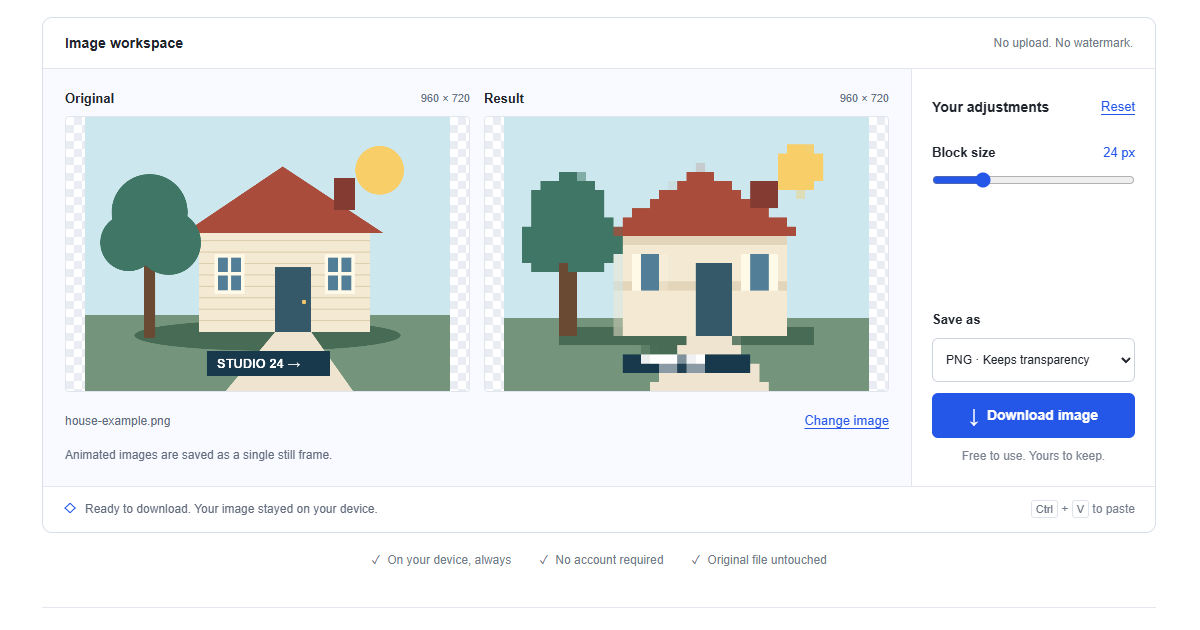
- Choose a block size. Move Block size between 1 and 100 pixels and compare the previews. The effect covers the entire picture, so watch both the subject and background as the blocks grow.
- Check and download. Select PNG for crisp squares or JPEG for a compressed copy. Read the dimensions and save the result, keeping the original if you might need a finer grid later.
How the mosaic is made
The tool reduces the working image to a smaller grid whose width and height are approximately the original dimensions divided by Block size. It then enlarges that grid back to the working dimensions with smoothing disabled. Each reduced sample becomes a flat rectangular block, replacing the fine detail that previously occupied that area.
The downloaded picture still has the working image's overall dimensions; it is not a tiny sprite file. Rounding the grid dimensions means blocks are approximate rather than guaranteed identical measured squares. Transparency is processed with the resized image and can also develop blocky boundaries around a cutout.
Five ways to use a pixelated picture
Try a retro avatar or 8-bit-inspired style
A simple portrait with a clear silhouette can work as a blocky profile picture. Crop the source to the intended shape in another editor first, then compare block sizes here at the final avatar size. Too many small blocks may look merely blurry once the platform shrinks the picture. The result suggests a retro aesthetic, but it does not choose a limited console palette or create hand-drawn pixel art.
Build mosaic artwork and block-texture backgrounds
A landscape or colorful object can become a source of large color tiles for a poster or background. Increase the block size until the texture supports the layout instead of competing with its text. Place the exported version behind your actual content to check readability. This effect retains sampled source colors, so choose a source whose palette already fits the design rather than expecting automatic color coordination.
Plan fuse-bead, cross-stitch or beadwork patterns
A coarse grid helps you judge whether a photographed subject remains recognizable with fewer cells. For example, a 1200-pixel-wide working image at roughly 24-pixel blocks yields about 50 columns to study. Use that as a visual reference for placing beads or stitches. The export does not include grid lines, numbered colors, a thread palette or a counted pattern; create those production details in dedicated craft software.
Create a teaser or reveal sequence
A heavily pixelated product or location can serve as the first frame of a reveal, followed by versions with smaller blocks. Download each stage from the same open source so the framing stays consistent. Test whether viewers can still identify the subject earlier than intended from its silhouette or colors. Pixelation is a creative suspense effect, not secure concealment for confidential details, faces or readable personal information.
Choose between 12, 24 and 48 pixel blocks
On a 1200-pixel-wide picture, 12-pixel blocks give about 100 columns, often retaining recognizable details. At 24 pixels there are about 50 columns, producing a stronger mosaic; at 48 there are about 25, emphasizing broad shapes. These are starting points, not universal presets. A small avatar becomes abstract much sooner than a large photograph, so choose by the working dimensions and the final display size together.
PNG or JPEG for crisp mosaic blocks?
Choose PNG when the square edges and exact sampled colors matter. It avoids lossy compression around boundaries and keeps transparency in the processed result. Pixelation can change partially transparent edges as it resamples the grid, so inspect a cutout against the background on which it will be used.
JPEG can suit an opaque photographic texture when a compressed copy is useful. Transparent regions become white, and block boundaries may acquire compression ringing or color smearing. Compare the saved version rather than assuming every square remains clean. Export produces rendered pixels and does not preserve the source camera EXIF metadata.
Accepted formats and image limits
PNG, JPEG, WebP, GIF, AVIF and BMP can be opened if your browser decodes them. HEIC and SVG are not accepted; convert them to PNG or JPEG first. Animated files become one still frame, and each selected file must be no larger than 30 MB.
Large sources are resized proportionally to fit 4000 pixels on the longest side and approximately 8 megapixels overall. Block size applies to that reduced working image, not the original camera resolution. Read the resize notice when reproducing a particular grid density. The preview dimensions are also the output dimensions; choosing large blocks does not reduce the exported canvas size.
Pixelation, blur and other image effects
Pixelation groups detail into visibly separate flat blocks. Blur spreads nearby colors smoothly and has no square grid. Neither mild blur nor mild pixelation reliably hides identifying information. This tool has no face selection or region mask; use solid removal or complete covering in a suitable editor for sensitive content.
If you want to simplify colors without a mosaic, use the grayscale converter. If the goal is to strengthen fine edges, the sharpen image tool serves a different purpose. Sharpening a saved mosaic can emphasize its square boundaries, but it cannot recover the detail that those blocks replaced.
Pixelate a picture on your phone
Tap Choose image in a modern mobile browser and select the source from your library or Files. Move the slider, wait for the new result and download the version you want. Open the saved file from browser Downloads or Files to check how the blocks look outside the small preview.
HEIC pictures need conversion before selection. If pasting fails, use the file chooser because the clipboard may contain a link instead of image data. A large decoded photo can use more memory than its compressed file size suggests. Try a smaller copy or close other busy tabs if your browser stalls during processing.
Keep the source and save before leaving
Your image is processed locally without an upload to an editing server. The website downloads its own page assets, but the selected picture stays on your device. Download creates a new file and does not change your source. Refresh, navigation and closing the tab discard the temporary workspace. Download every version you want before leaving, especially when making a reveal sequence. A saved mosaic contains the block colors, not hidden recoverable original details or an editing history.
Frequently asked questions
How can I pixelate an image online?
Choose, drop or paste a supported picture into the workspace. Adjust Block size until the subject has the level of abstraction you want. Select PNG or JPEG and download. Compare the saved file at the size where you plan to use it.
How do I pixelate a picture on a phone?
Open the page in a modern browser and tap Choose image. Convert HEIC to PNG or JPEG if necessary. Move Block size and save the result through Download image. The file may appear in Downloads or Files instead of your photo library.
Does pixelation lower the quality or resolution?
It intentionally removes fine detail by replacing it with a coarse grid. The output keeps the working canvas dimensions, which may already be smaller than a large source. PNG preserves the resulting blocks without lossy compression. A large output file cannot restore the discarded details.
Can I create the mosaic without uploading my photo?
Yes, the grid is calculated in your browser from the local file. There is no image upload or remote processing account. Download before refreshing or navigating away, because the open picture is not stored in the cloud.
Is pixelating an image the same as blurring it?
No, pixelation creates distinct color blocks while blur makes smoother transitions. Both reduce visible fine detail in different ways. This tool applies a grid to the whole image and does not offer a blur brush or a selected-region effect.
Can I remove pixelation after saving?
While the original remains open, set Block size to 1 to return to its working detail. Reset instead restores the default 12-pixel blocks. A downloaded mosaic does not store the original detail, so keep the source to make a different version later.
Can I hide only a face or a private number?
This tool changes the entire picture and has no region selection. Mild pixelation may leave faces recognizable or numbers inferable. For private information, remove the region or cover it completely in an editor with suitable selection tools before sharing the image.