Grayscale Image Converter
Let light and shadow take the lead. Remove all color, or keep just a little.
Image workspace
No upload. No watermark.A new perspective starts here.
Drop your image, or paste it anywhere.
PNG, JPG, WebP & more · Up to 30 MBYour image stays on your device.
Ctrl + V to pasteHow to make a grayscale image
- Open the source. Choose PNG, JPEG, WebP, GIF, AVIF or BMP from your device. You can also drag a file or paste copied image data with Ctrl+V on Windows or Command+V on Mac.
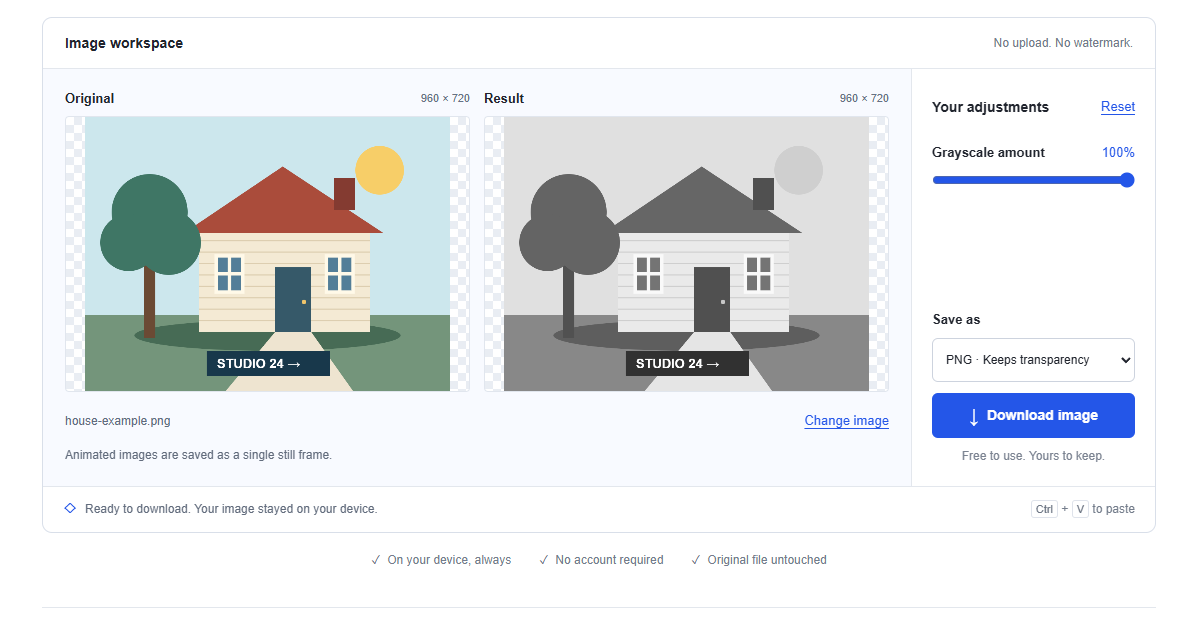
- Set the amount. Leave Grayscale amount at 100% for neutral tones or lower it to retain some color. Compare the subject and background, since different colors can become similar shades of gray.
- Choose and save. Select PNG or JPEG and check the displayed working dimensions. Download a separate copy, then inspect it at the intended screen or print size before using it.
How the converter calculates gray pixels
For each pixel, the converter calculates a weighted value: 0.299 × red + 0.587 × green + 0.114 × blue. At full strength, it assigns that value to all three color channels. Equal RGB values appear neutral, ranging from black through intermediate grays to white. The weighting gives green more influence than blue rather than treating every channel equally.
Lower amounts blend those gray values with the source channels. This changes saturation without moving pixels or changing alpha. The picture looks monochrome at full strength, but canvas export does not guarantee a specially encoded single-channel grayscale file.
Five situations where grayscale is useful
Reduce color variation across print batches
For a handout that will be reproduced on different printers, a monochrome source removes the need to match its original colors across copies. Check whether adjacent colored areas collapse to the same gray before distributing it. This can simplify a document's visual consistency, but it does not control ink, paper or printer calibration. Select the appropriate monochrome print mode and make a proof for the actual production setup.
Prepare formal portraits and editorial pictures
A portrait can feel more consistent within a monochrome publication when its colors no longer compete with the surrounding typography. Inspect skin, hair and clothing separation before committing to the treatment. For news or documentary use, preserve an untouched source and follow the publication's editing rules. Removing color can change how an image is interpreted, especially when colored signals or objects are part of the story.
Reduce distracting background colors
A bright sign or saturated wall may dominate a photograph even when it is not the subject. Converting the whole image to gray lets you judge whether removing that color competition helps. It does not selectively mute the background, so the subject also loses color. If both become equally gray and difficult to separate, a different crop or an editor with selective adjustments may be more useful.
Prepare a tonal reference for engraving or etching
Some engraving workflows use light and dark values to guide raster treatment, making a grayscale preview useful when checking a photograph's tonal range. Export a clear reference and follow the machine software's requirements for resolution, dithering and color mode. This tool does not create laser cutting paths or guarantee a single-channel file. If that encoding is required, convert the downloaded RGB image in the production software.
Test composition through light and shade
Remove color temporarily to see whether the subject stands out through value alone. Large light and dark shapes become easier to compare, which can reveal a bright corner pulling attention away from the center of interest. Check the image at a small size as well as full view. Use the result to guide your composition choices; it does not automatically fix lighting or improve contrast between similar tones.
Choose a grayscale PNG or JPEG
Use PNG for diagrams, small text and cutouts whose transparency must survive. The grayscale effect leaves alpha unchanged, and PNG preserves the processed pixels without lossy compression. A solid colored background becomes solid gray; it is not removed or converted to transparency.
Use JPEG for a photographic copy when transparency is unnecessary. Transparent parts are placed on white, and compression can affect fine edges and smooth tonal transitions. File size depends on the picture, so grayscale alone does not guarantee a smaller file. These exports contain rendered pixels without the source camera EXIF metadata.
Input formats and resolution limits
You can open PNG, JPEG, WebP, GIF, AVIF and BMP when your browser supports their decoding. HEIC and SVG are not accepted, so export a PNG or JPEG first. Animated inputs produce a single still frame. Files must be no larger than 30 MB.
The working image is reduced proportionally when necessary to fit a longest side of 4000 pixels and approximately 8 megapixels overall. The workspace reports any resizing and shows the resulting dimensions. Conversion keeps that working size, but detail lost during the initial reduction cannot be recovered. Check that the pixel count suits your intended print or engraving workflow.
Grayscale, black and white, sepia and desaturation
A grayscale photo includes intermediate gray tones. People often call that black and white, but a strictly two-color image contains only pure black and pure white after thresholding. Sepia instead uses a warm brown treatment. Desaturation means reducing color intensity; this page offers partial desaturation below 100% and weighted neutral grayscale at full strength.
Use the image to sketch converter for pencil-like marks and altered shading. Use the blackify image tool to darken a photograph rather than remove its color. Neither operation is required just to make a neutral monochrome picture, and this page does not add a sepia tint or binary threshold.
Convert a phone photo to grayscale
Open the tool in a modern mobile browser, tap Choose image and select a supported picture. Leave the amount at 100% or adjust it, then download your copy. Check the browser downloads list or Files app if the result does not appear immediately in your photo library.
HEIC camera files need conversion to PNG or JPEG first. If pasting does nothing, use the file picker; mobile clipboard restrictions or a copied link can prevent image data from reaching the page. Large photos can run out of memory after decoding. A smaller source and fewer open tabs can help when the browser becomes unresponsive.
Private editing and preserving the color original
The conversion runs on your device inside the browser. Your selected photo is not uploaded to an editing server, although the website still loads its normal page assets. Download creates a separate result and leaves the color source untouched. Save before refreshing, switching tools or closing the tab. The preview and adjustments are held in temporary memory, not a cloud project. Retain the source if you might need the original colors later; a downloaded gray image does not contain those hidden colors.
Frequently asked questions
How do I convert a picture to grayscale?
Choose, drop or paste a supported picture into the workspace. Leave Grayscale amount at full strength for neutral tones. Compare important objects to make sure they remain distinct. Download PNG or JPEG to save the result as a separate file.
Can I make a black and white photo on my phone?
Yes, open the page in a modern mobile browser and tap Choose image. Convert HEIC to a supported format if needed. Download the grayscale result after checking the preview. Your browser may save it in Downloads or Files rather than Photos.
Does grayscale conversion reduce quality?
It removes color information but retains tonal detail at the working resolution. Large sources may have been resized before conversion. PNG avoids additional lossy compression; JPEG does not. Check the displayed dimensions and keep the color original for future edits.
Can I remove color without uploading my photo?
Yes, the selected file is read and processed locally in your browser. No image is sent to a processing service and no account is needed. Download before leaving, since there is no cloud copy of the workspace.
Is grayscale the same as black and white or sepia?
A grayscale photograph uses many gray shades, which people commonly call black and white. A strict black-and-white threshold image has only two tones. Sepia adds brown coloration instead of neutral gray. This converter supplies grayscale and partial desaturation, not those other treatments.
Can I undo grayscale and get the colors back?
While the source is open, set Grayscale amount to zero to view its working colors again. Reset returns to the default full grayscale amount. A saved grayscale file cannot reliably restore the original colors, so retain the unchanged source.
Is the download a single-channel file for my laser software?
The image has equal RGB values at full grayscale strength, but its canvas export is not guaranteed to use single-channel encoding. Check what your production software accepts. If it specifically requires a grayscale color mode or cutting paths, prepare those there after download.