Invert Image Colors Online
Invert image colors in your browser. Choose, drop or paste a picture, compare the result, then download a PNG or JPEG. No upload or watermark.
Image workspace
No upload. No watermark.A new perspective starts here.
Drop your image, or paste it anywhere.
PNG, JPG, WebP & more · Up to 30 MBYour image stays on your device.
Ctrl + V to pasteHow to invert an image online
- Choose your picture. Press Choose image and select a file from your device. On a computer, you can also drag it into the workspace or paste a copied image with Ctrl+V on Windows or Command+V on Mac.
- Compare the colors. The image inverter applies the effect automatically. Look at Original and Result to check the change. There is no strength slider: every red, green and blue value is reversed.
- Save a separate copy. Under Save as, choose PNG or JPEG, then press Download image. Check the displayed output dimensions before saving, especially if you opened a large photo.
You can use Change image to try another picture. Choosing a file does not overwrite it, and downloading creates a separate result. Keep the source if you want to return to its original colors later.
Invert image colors: before and after
Color inversion changes each RGB channel to 255 minus its current value. A pixel with values of 60, 120 and 180 becomes 195, 135 and 75. White turns black, black turns white, red becomes cyan, green becomes magenta, and blue becomes yellow. Middle grays change less dramatically than very light or dark tones.
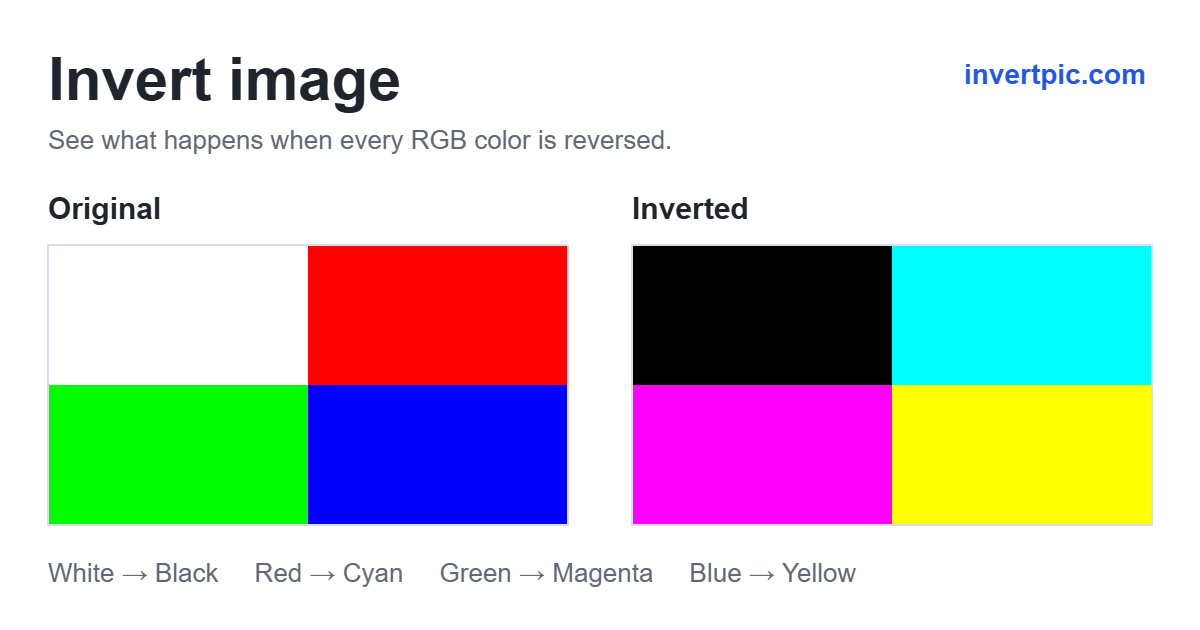
The effect changes color across the whole picture. It does not rotate the image, mirror its layout or move any objects. Text keeps its reading direction, while its color and background reverse. Transparent areas remain transparent because the effect leaves the alpha channel unchanged.
When is an inverted picture useful?
For a screenshot or diagram, reversing black and white can produce light lettering on a dark background. This can be useful when preparing a slide or comparing how a graphic looks against a different page color. Review small text and colored labels afterward: inversion alone does not guarantee readable contrast.
For a transparent logo, a black mark becomes white without adding a solid background. Save as PNG and check it against the background where you plan to use it. Multicolored logos will also change color, so this is most predictable with monochrome artwork.
For creative photos, a color reversal gives familiar scenes an unfamiliar palette. Skies, skin tones and shadows can look surprising. Use the original beside the result to decide whether the effect suits your image; it is a color treatment, not an automatic photo enhancement.
Choose PNG or JPEG for your download
Use PNG when your image contains transparency, text, icons or sharp graphic edges. PNG saves the processed pixels without lossy compression at the displayed working size. It cannot restore detail already missing from the source or removed when a large image is resized.
Use JPEG when you need a compressed copy of a photograph and do not need transparency. JPEG export places transparent areas on white and may introduce compression artifacts around fine details. File size depends on the picture, so JPEG is not guaranteed to be smaller in every case.
The downloaded file contains the rendered result, rather than the original camera file. Camera EXIF metadata is not retained. Keep your source separately if its original metadata or full resolution matters to your workflow.
Supported image formats and size limits
You can open PNG, JPEG, WebP, GIF, AVIF and BMP files when your browser can decode them. HEIC and SVG are not accepted here; export them as PNG or JPEG first. Animated images are processed as a single still frame, so an animated GIF will not remain animated after download.
Files must be no larger than 30 MB. To keep editing manageable in the browser, large pictures are resized to a maximum of 4000 pixels on the longest side and approximately 8 megapixels in total. Their proportions are preserved. The workspace shows a resize notice and the resulting dimensions, so you can judge whether the output is large enough before downloading.
Color inversion, photo negatives and other effects
A direct color inversion is the starting point for a digital negative. This page applies that reversal without an additional tone curve. The negative image generator adds an adjustable curve that can lift the inverted midtones for a softer effect. Neither tool is a calibrated film scanner: a scan of color negative film may need orange-mask removal and separate color correction.
If you want a black and white photo that keeps natural light and shade, use the grayscale image converter. If you mean turning a picture left to right, use the image flipper. Grayscale removes color, flipping changes orientation, and inversion reverses color values. Choose the operation that matches the change you actually want.
Use the image inverter on your phone
Open this page in a modern mobile browser and tap Choose image. Select a supported picture from your photo library or files, wait for the result, then choose an export format and tap Download image. The file may appear in the browser downloads list or Files app; the save location depends on your device and browser.
If a picture will not open, check its format and file size first. An iPhone photo saved as HEIC needs conversion to PNG or JPEG. If pasting does nothing, use the file chooser instead: the clipboard must contain image data, not just a copied link. For memory errors or an unresponsive tab, try a smaller copy of the image and close other busy tabs.
Your pictures stay on your device
The tool reads your selected file and processes its pixels locally in your browser. Your picture is not uploaded to an editing server. There is no account to create and no watermark added to the result. The website still needs to load its page and code, but editing does not send your image elsewhere.
This workspace is not cloud storage. Download the result before closing or refreshing the page, and keep a copy wherever you normally store your pictures. To work on several files, open and save them one at a time; there is no batch export.
Frequently asked questions
How do I invert an image for free?
Choose, drop or paste a supported picture into the workspace. Its colors reverse automatically, and you can download PNG or JPEG without paying, creating an account or receiving a watermark. You do not need to install an image editor.
Can I invert image colors without uploading the file?
Yes. Choosing a picture gives the page access to that file for local processing. The image inverter runs in your browser and does not transmit the picture to a server. Download the result before leaving the page.
Does inverting an image reduce its quality?
The inversion itself changes RGB values without reducing the working resolution. However, pictures beyond the size limits are resized before processing. PNG preserves the resulting pixels without lossy compression; JPEG applies compression. Check the displayed dimensions before saving.
Can I change a black logo to white and keep transparency?
Yes. Black pixels become white, and the inversion keeps the alpha channel. Choose PNG to retain transparency. If the original has a solid white background, that background becomes black; inversion does not remove it or make it transparent.
Can I invert only the background or part of a photo?
This tool reverses colors across the entire image. It does not include a selection brush, subject detection or separate background control. To change only one region, use an editor with selections or masks so you can isolate that area.
Can I get the original colors back by inverting twice?
Applying a direct RGB inversion twice restores the starting channel values if the pixels remain unchanged between operations. Resizing, JPEG compression and other edits can prevent an exact match. Keeping the original file is the simplest way to preserve it.
Why does my inverted photo look gray or unexpected?
Pixels close to middle gray remain close to middle gray when reversed, while saturated colors change more strongly. Inversion does not automatically improve exposure or contrast. If the result looks unchanged, compare a clearly white, black or colored part of the image.
Does this change my phone screen colors?
No. This page changes the pixels of the selected picture and saves the effect in a new file. It does not enable a system display filter. Other photos, apps and web pages keep their normal appearance.